4. Keep an eye on the work and your usage
The quick check
The top bar answers the two usual questions on every page: how many agents are working, and how much of the week is used. The number on Chat says how many things need you.
If you only do one thing, look at the Chat home page: the line under the box says how many things wait on you, and each focus card says what moves (Now), what waits on you (Needs you) and what changed (Lately).
See what agents are doing
Click Agents. Now shows who is working. For the full list, open All agents in the row under the bar: Running and Failed narrow it, and Filters and Columns change what you see.
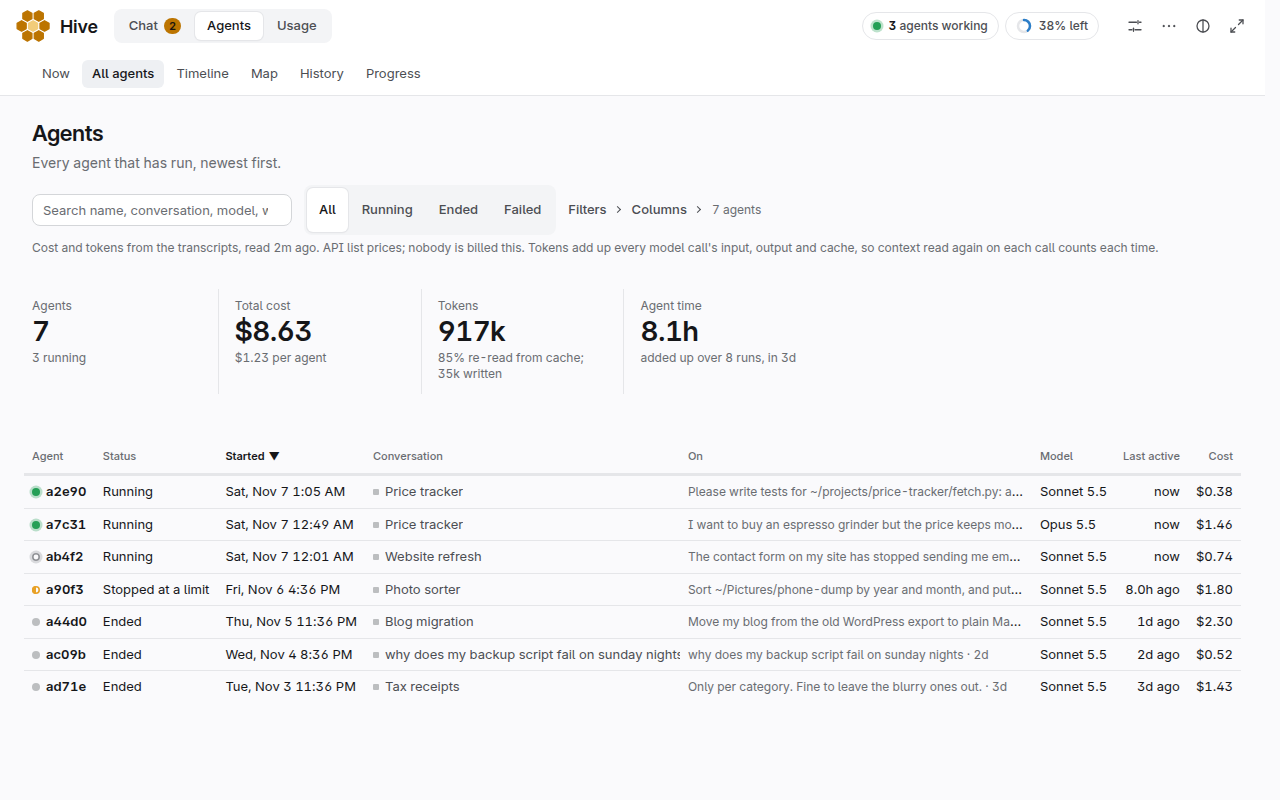
Each row shows what the agent was asked, what it last said and what it's doing now. Click an agent's name for the details, including its recent tool calls.
A quiet agent isn't a problem. It's usually waiting for you, or for a job. Worry about one when it says stuck, or when it's been quiet on something you expected to move. Ask it in the conversation: "Where are you on this?"
Check your usage
Click Usage.
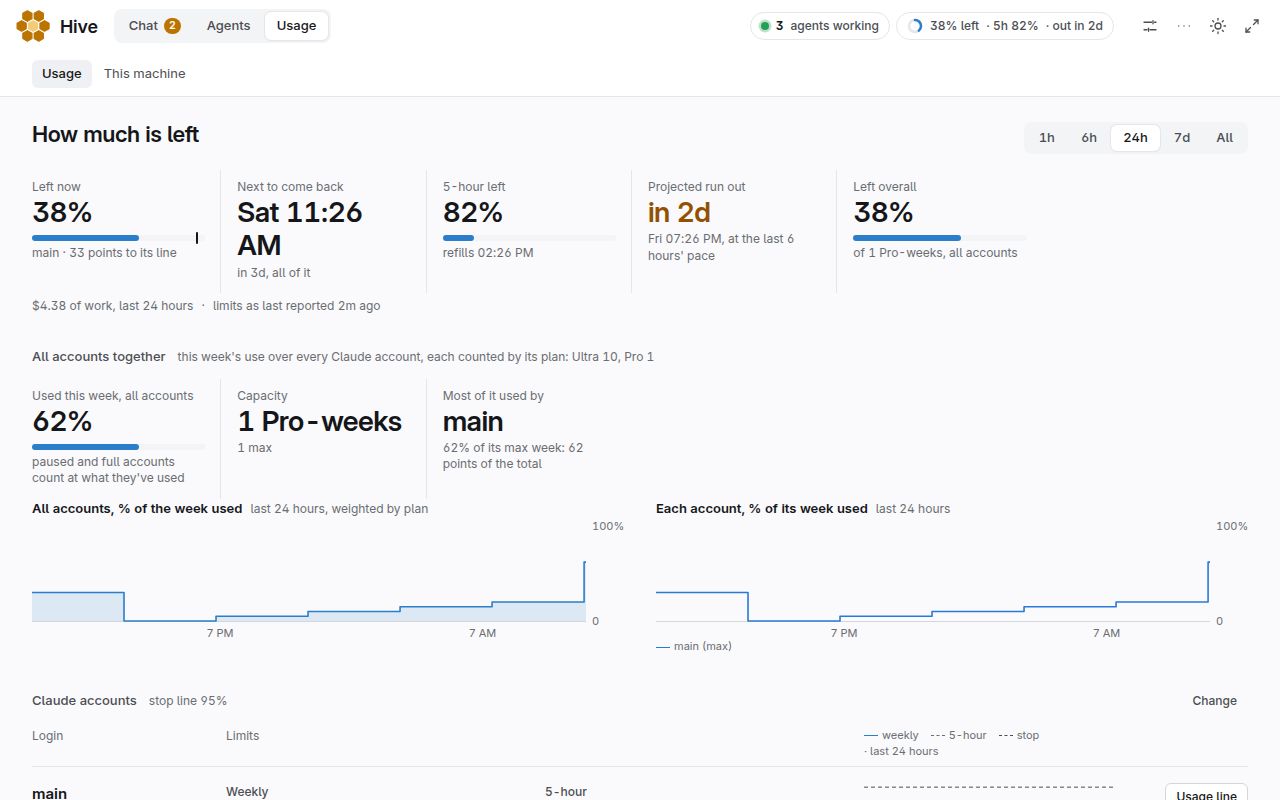
The first sentence tells you how much is left, when it comes back and when you'd run out at this pace. Dollar figures are at API list prices. On a subscription they measure work, and aren't a bill.
If it's going too fast:
- Set Agents at once in Settings, or lower it. 1 or 2 is fine for most people.
- Look at the conversations that used the most, and tell the agent to stop if the job isn't worth it.
- Lower the Usage line, so new agents stop sooner and keep some of the week for your own use.
- Make sure Keep work moving is off in Settings, unless you want it.
If you need more room: add another Claude subscription in Settings, under Accounts. New agents go to the one with the most left.
Go through everything that happened
- Inbox, at the foot of the Chat list: everything addressed to you.
- Agents > Timeline: which conversations ran when.
- Agents > Map: who's talking to whom, with Replay.
- Agents > History: every event, newest first.
- Usage > This machine: how busy the computer is.